
SchoolCafé
Cybersoft PrimeroEdgeEducation
3.31.38K Reviews
- Version
- 16.4
- Installs
- 500.00K
- Age Rating
- Everyone
Screenshots
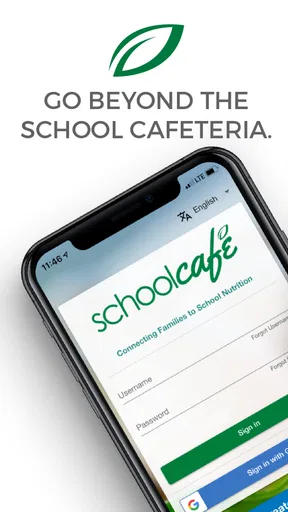
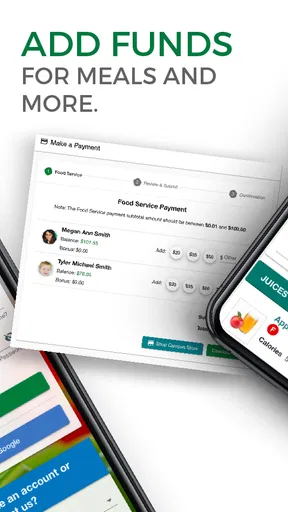
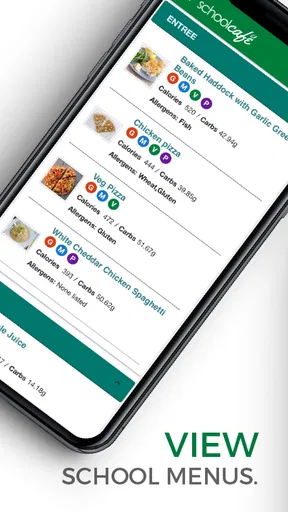
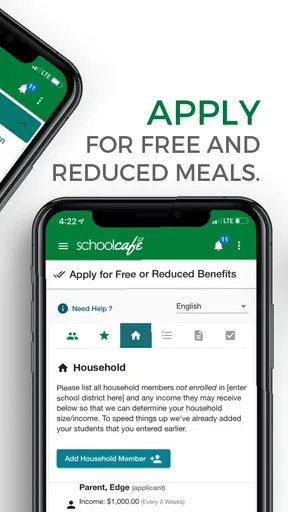
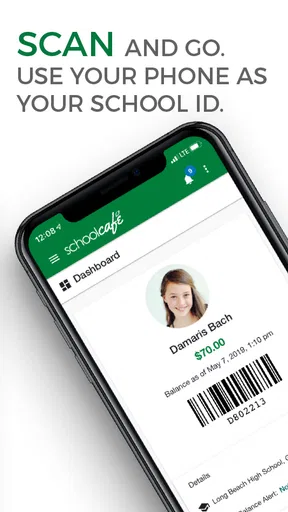
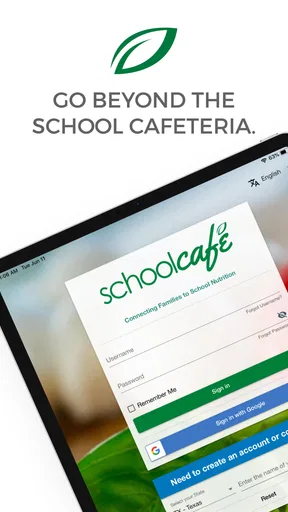
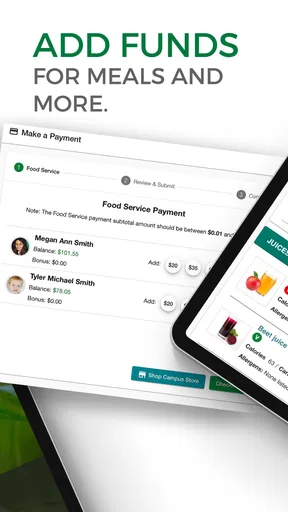
Our Review of SchoolCafé
 Analysis by Appyee
SchoolCafé is the kind of education app I would judge less by flashy presentation and more by whether it makes a routine family task easier without creating confusion. Its purpose is to connect families with school nutrition, so the real test is practical: can a parent check the information they need, make a decision calmly, and understand what is happening with their account? In my experience, that is where this app’s value lies. It is not trying to replace a full school portal or become a general family organizer. It focuses on the food-service side of school life.
That narrow focus is useful, especially for households where school meals, cafeteria information, or nutrition-related account tasks are handled separately from grades and attendance. At the same time, the experience depends heavily on whether a child’s school is properly connected to the service. I would not install it expecting a universal cafeteria directory. I would first check whether my school uses SchoolCafé, then treat the app as a practical companion to that school’s own nutrition system.
How SchoolCafé fits into everyday family routines
I find a focused routine helps families get more from SchoolCafé than repeatedly opening it whenever a question comes up. In this section, I’m looking at how a quick check can fit alongside the school’s other communication channels, while keeping the app’s role clear and manageable. That everyday pattern also makes it easier to decide which settings are worth reviewing before relying on it regularly.
A focused education app rather than a complete school portal
The app sits in the education category and is developed by Cybersoft PrimeroEdge. It is free to install, carries an Everyone age rating, and supports devices running Android 6.0 or later. Those details make it approachable for a wide range of family devices, including older phones that may not run newer school-management apps comfortably.
I like the fact that its purpose is easy to understand. SchoolCafé is about the connection between families and school nutrition, not about trying to gather every school function into one crowded dashboard. That focus can reduce the number of places a parent has to search when the question is specifically related to cafeteria services. The trade-off is that users still need another school channel for unrelated matters such as assignments, transportation, attendance, or teacher communication.
The app has been available since July 31, 2016, and its current version is 16.4. It has passed the half-million-install mark and holds an average rating of 3.3 from roughly three thousand ratings, with about one and a half thousand written reviews. I read those figures as a sign of a useful but unevenly experienced service: enough adoption to be familiar to many families, but not a universally smooth experience for everyone.
The best everyday scenario
Picture a parent preparing for a busy school morning. A child asks whether lunch arrangements are already handled, while the parent is also trying to get two people out of the door. In that moment, an app dedicated to school nutrition can be more convenient than searching through old emails, opening a general school website, or calling the cafeteria. The value is not entertainment; it is reducing uncertainty around a small task that matters on a deadline.
My practical advice would be to set it up at a calm time rather than during the morning rush. Confirm the school connection, review the account information carefully, and keep the app available for the moments when nutrition details need checking. That workflow is more reliable than treating the app as something to explore only when a problem has already appeared.
Who will benefit most
SchoolCafé makes the most sense for parents and guardians whose children attend schools using the service, especially families managing more than one child or trying to keep school-meal tasks separate from a larger school portal. It can also be useful for a household where one adult handles school administration and another needs a clear way to stay informed.
I would be more cautious about recommending it to someone whose school rarely uses digital nutrition tools or communicates cafeteria information through a different system. In that case, the app may add another account and another place to check without replacing the channel the school actually relies on. The app’s usefulness is therefore local and practical, not automatic simply because it is installed.
What the first setup tells you
The first setup is also the moment when I would evaluate trust. Before entering anything sensitive, I would look for the school or district connection, check that the account belongs to the right family, and read each screen instead of accepting prompts quickly. A nutrition app can involve information that affects children and household routines, so accuracy matters more than speed.
A helpful habit is to compare the app’s displayed details with the school’s normal communication during the first few uses. If the names, student associations, or account context look wrong, I would stop and resolve that before relying on the app. This is a small step, but it prevents a common mistake: assuming that a successful login automatically means the correct child or school profile is being viewed.
Trust is built through visible choices
For me, trust in SchoolCafé should come from what the app visibly lets me review and control, not from assumptions about the developer or the category. I want to know which school connection I am using, what account I am signed into, and what action I am about to take before confirming it. Clear labels and deliberate confirmation screens are especially important when information relates to a child’s school routine.
I would also pay attention to account controls during setup and later use. If I no longer need the service, I would look for the normal sign-out, account-management, or removal options rather than simply deleting the icon. Deleting an app removes it from a device, but it is not always the same as closing an account or changing information held by a service. That distinction is worth keeping in mind with any family-facing app.
The app is free, which removes a direct purchase barrier for families. Still, “free” should not be treated as a complete explanation of the service relationship. I would review the app’s own privacy and account screens, check the permissions requested on my device, and avoid granting access that does not appear necessary for the task I want to complete. This is not a criticism unique to SchoolCafé; it is a sensible habit whenever an app handles school-related information.
Permissions deserve a deliberate review
Android shows the permissions requested by an app through the device settings and installation flow. I would use those screens as the authoritative place to decide what SchoolCafé can access on my phone. If a permission appears optional, I would leave it disabled until the app clearly explains why it is needed. If a feature stops working without it, that gives me a concrete choice: grant access, use a different route, or skip that feature.
This approach is better than guessing. I would not claim that a permission is harmless or intrusive without seeing the current request on my own device. Permissions can change between versions and may also depend on the phone’s operating system. The useful practice is to check them directly, revisit them after updates, and remove access that no longer matches how I use the app.
Data-sensitive moments in real use
The most sensitive moments are not necessarily the ones that look dramatic. They can be ordinary actions such as selecting a school, connecting a student, reviewing a nutrition-related account, or confirming a change. I would slow down at each of these points and verify the displayed details before moving forward. A rushed tap is more likely to create confusion than a careful minute spent checking the screen.
Shared devices deserve extra attention. If a family tablet is used by several people, I would sign out when appropriate and make sure the next user cannot open an active account accidentally. On a personal phone, I would still use the device’s screen lock and avoid leaving the app open in situations where other people can see school-related information. These are user-controlled safeguards rather than claims about how the service stores data.
Notifications are another area where personal choice matters. If the app offers notification settings, I would choose only the alerts that help with school-meal planning and turn off anything that creates unnecessary noise. On Android, notification controls can also be reviewed at the system level. A quiet, focused setup is preferable to allowing every alert simply because it was enabled during installation.
Account control matters more than convenience
One of the less obvious trade-offs is the balance between staying signed in and keeping control over access. Staying signed in can make a morning check faster, but it also means anyone who unlocks the phone may reach the account. Logging out adds friction, particularly for busy parents, yet it is the better choice on a shared phone or a device used by a child.
I would also keep login details out of casual notes, screenshots, and shared family chats. If another caregiver needs access, it is safer for that person to use the service’s intended account route than to circulate credentials. This is a simple workflow improvement, but it makes responsibility clearer when several adults manage school routines.
When changing phones, I would not assume that transferring the app is enough. I would install the current version, check the account and school connection again, review permissions, and sign out of the old device if it will be given away or reused. That four-step check takes little time and avoids carrying an old session into a device that no longer belongs to me.
Where the experience may feel limited
The rating of 3.3 suggests that the experience is not consistently frictionless. I would expect some users to find the app helpful while others run into school-specific setup issues, account confusion, or an interface that feels less polished than newer family-management tools. Because the service connects families to school nutrition systems, part of the experience may depend on how a particular school or district has configured its side of the service.
That dependency is important. If information looks outdated or a student connection is missing, reinstalling the app repeatedly may not solve the problem. I would first check whether the school has changed its nutrition process, then use the school’s official contact route for account or enrollment corrections. The app can be the window into the service, but it may not control every detail visible through that window.
I also would not use SchoolCafé as my only record for important family planning. If a meal-related detail affects a child’s day, I would keep the school’s official communication available as a second reference until I know the app is current for that school. This is not unnecessary duplication; it is a sensible backup when information is time-sensitive.
How it compares with the usual alternatives
The usual alternatives are a school website, emailed cafeteria notices, a general parent portal, or direct contact with the school. Those options can be better when I need official announcements, broad school information, or a correction that requires staff assistance. Email is also easier to search later, while a school website may explain policies in more detail than a focused mobile screen.
SchoolCafé’s advantage is convenience at the point of need. Instead of navigating a large school website or searching an inbox, I can use a service designed around school nutrition. Its weakness is the same narrow scope that makes it appealing: it is not a replacement for the school’s full communication system, and it may not resolve administrative issues by itself.
A general parent portal may be the better choice for families who want one place for grades, messages, attendance, and meal information. However, a broad portal can bury cafeteria tasks among unrelated screens. I would choose SchoolCafé when nutrition is the specific task and the school supports it well; I would choose the broader portal when reducing the number of apps matters more than having a dedicated nutrition workflow.
Three habits that make the app more dependable
After connecting the school, I would verify the account context before relying on any displayed information. This is particularly important in families with several children or multiple school connections.
I would review permissions and notifications immediately after setup, then check them again after a major app or operating-system update. That keeps access aligned with what I actually use.
I would keep the school’s official communication available for unusual or urgent situations. If the app and a direct school message disagree, I would treat the discrepancy as something to resolve rather than guessing.
These habits reveal a broader point: the app works best when it is part of a clear family process. It should reduce routine checking, not become the sole authority for every school-meal question. Used that way, its focused design is a strength rather than a limitation.
My cautious verdict
I would recommend SchoolCafé to families whose schools actively use it and who want a dedicated way to handle school-nutrition tasks on a phone. The free price and Everyone rating make it easy to try, while support for Android 6.0 or later means it remains accessible on many older devices. The developer, Cybersoft PrimeroEdge, has maintained the app through its current version, giving it a long-running presence rather than the feel of a temporary experiment.
My recommendation comes with conditions. I would check the school connection carefully, review permissions and notifications, protect access on shared devices, and keep an official school channel for confirmation when something looks inconsistent. I would skip it if my school does not meaningfully use the service or if a general parent portal already handles the same tasks more clearly.
SchoolCafé is most trustworthy when I treat it as a focused tool with visible user choices, not as a complete school-management system. It can make ordinary nutrition-related checks faster, but the quality of the experience depends on careful setup, sensible account habits, and the school’s own use of the platform. For the right family, that is enough to make it worthwhile; for everyone else, the usual school website or parent portal may remain the clearer option.
Verdict
Strengths of SchoolCafé
- Quickly view school menus, balances, and account updates in one place.
- Supports multiple students and schools under a single parent account.
- Push notifications can help you track meal purchases and low balances.
- Useful calendar and announcement details improve day-to-day planning.
- Secure sign-in helps protect student meal and payment information.
Limitations of SchoolCafé
- Some schools may not enable every SchoolCafé feature or payment option.
- Menu details can be incomplete when schools do not update them regularly.
- Account setup may require exact student and district information.
- Payment processing or balance updates may occasionally be delayed.
- The interface can feel less intuitive for first-time users.
Similar Picks in This Category
View All
Duolingo: Language Lessons
Duolingo4.7

Google Classroom
Google LLC2.8

Unacademy: Learn & Crack Exams
Unacademy3.2

Bible App for Kids
Life.Church4.4

Cake - Learn English & Korean
Cake Corp.4.7

Brainly: AI Homework Helper
Brainly4.5
Frequently Asked Questions
What is SchoolCafé, and what can I use it for?
SchoolCafé is a school-services platform that allows families to manage several everyday activities from one place. Depending on the district, you may be able to view school meal menus, check account balances, add money to a student’s meal account, review purchases, apply for meal benefits, and receive notifications. Available features can vary by school district, so the app may offer more or fewer tools after you connect your school information.
How do I add my child or connect my account to a school district?
After creating or signing in to a SchoolCafé account, you generally need to select your school district and add a student using information requested by the district, such as the student’s name, identification number, or date of birth. The exact process differs between districts. If your child cannot be found, check the details carefully or contact the school district’s nutrition or administrative office for assistance.
Can I pay for school meals through SchoolCafé?
In participating districts, SchoolCafé lets parents and guardians add funds to a student’s cafeteria account using an available payment method, often a debit card, credit card, or electronic payment service. Payment options, processing fees, minimum amounts, and posting times depend on the district. Before confirming a transaction, review the total cost carefully, especially if a service or convenience fee is included.
Does SchoolCafé show menus, meal purchases, and account balances in real time?
SchoolCafé can provide access to menus, balances, and transaction history, but the timing and level of detail depend on how the school district updates its systems. Some information may appear immediately, while deposits, purchases, or eligibility decisions can take longer to process. If a balance looks incorrect or a recent payment is missing, contact the district rather than relying only on the app.
Is SchoolCafé free, and is my personal information secure?
Downloading and using SchoolCafé is generally free, although some districts may apply transaction or convenience fees when adding money to a meal account. The app handles account, student, and payment-related information, so users should review the privacy policy and permissions before registering. Use a strong password, keep the app updated, and sign out on shared devices to help protect your account.
